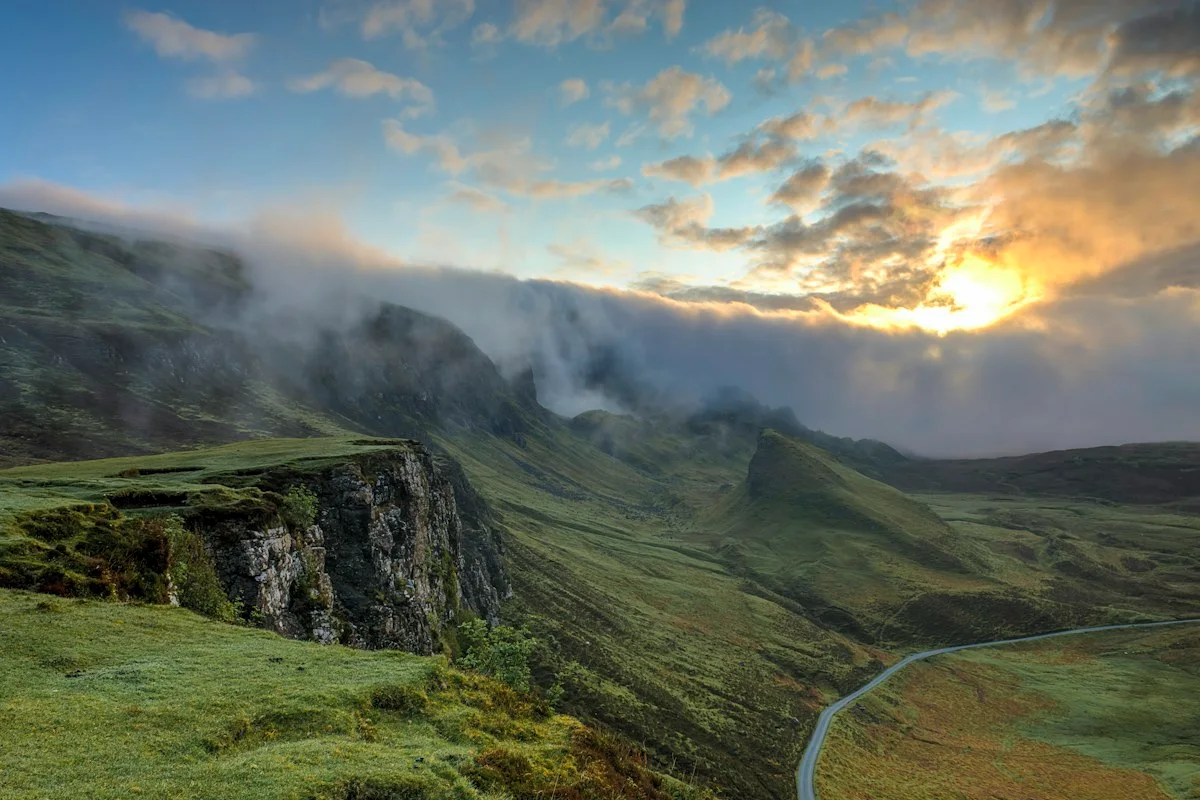
Upscale images 2× with Wonder 4. Enhance detail and reduce blur.
How to Upscale an Image
- 01
Upload an image
Choose a JPG, PNG or WebP.
- 02
Upscale with AI
Double the resolution with Wonder 4.
- 03
Download your image
Compare and save your PNG.
AI Portrait Enhancement
Enhance facial features, hair and skin texture.
- Facial features
- Hair detail
- Skin texture
Illustrative examples. Results vary.
Wildlife Image Upscaling
Bring more definition to fur and feathers.
- Fur texture
- Feather detail
- Small features
Illustrative examples. Results vary.
Architectural Image Upscaling
Enhance building edges and surface textures.
- Building edges
- Surface texture
- Fine detail
Illustrative examples. Results vary.
Landscape Photo Enhancement
Give distant scenery and natural textures more definition.
- Distant scenery
- Natural textures
- Scene definition
Illustrative examples. Results vary.
Product Image Upscaling
Show product outlines and material textures more clearly.
- Product outlines
- Material texture
- Small features
Illustrative examples. Results vary.
Fashion Image Enhancement
Refine fabric, folds and clothing edges.
- Fabric texture
- Clothing folds
- Fine edges
Illustrative examples. Results vary.
 BeforeAfter
Why Choose Lensilo?
Wonder 4 enhancement with simple controls.
Free, no sign-up
Free online, no account needed.
Preview before uploading
Preview locally before you upload.
Two-hour image access
Cloud access lasts two hours from confirmed completion.
JPG, PNG and WebP
One static image, up to 1500 px per side.
2× resolution, PNG output
Double image dimensions. Download as PNG.
Automatic enhancement
Wonder 4 adjusts enhancement for you.
Frequently asked questions
Image requirements, processing and downloads
Is Lensilo’s image upscaler free?
Yes. Lensilo is free to use without an account, subject to service availability and usage limits.
How do I upscale an image online?
Choose a JPG, PNG or WebP image, select Upscale image and complete the security check. Compare and download your result when processing finishes.
How much can I increase image resolution?
Lensilo doubles both width and height, giving your image four times as many pixels.
Can AI improve blurry or low-resolution photos?
AI can improve the appearance of blur, noise and compression artifacts. Results depend on the source image.
What image formats and sizes are supported?
Upload one static JPG, PNG or WebP. Both width and height must be 1500 px or less. Results are PNG files. HEIC and animated images aren’t supported.
When is my image uploaded?
Choosing an image opens a local preview. Uploading begins after you start upscaling and complete the security check.
How long are my images available?
Your original and result remain available in the cloud for two hours after processing is confirmed complete. Refreshing does not extend this period. Access expiry and physical deletion are separate processes; cleanup may require retries.
Can I use enhanced images commercially?
Commercial use remains subject to the rights and permissions that apply to the original image and its content. Upscaling does not grant new rights to third-party material.
Can AI upscaling change original details?
Yes. Wonder 4 uses generative AI and may add or change facial features, text and textures. Review results when accuracy matters.
Can I find my result after leaving the page?
Reopen this page in the same browser to restore your task and recent results. Browser copies share the original two hours of access and may be removed earlier by your browser. Files you download yourself remain on your device.